
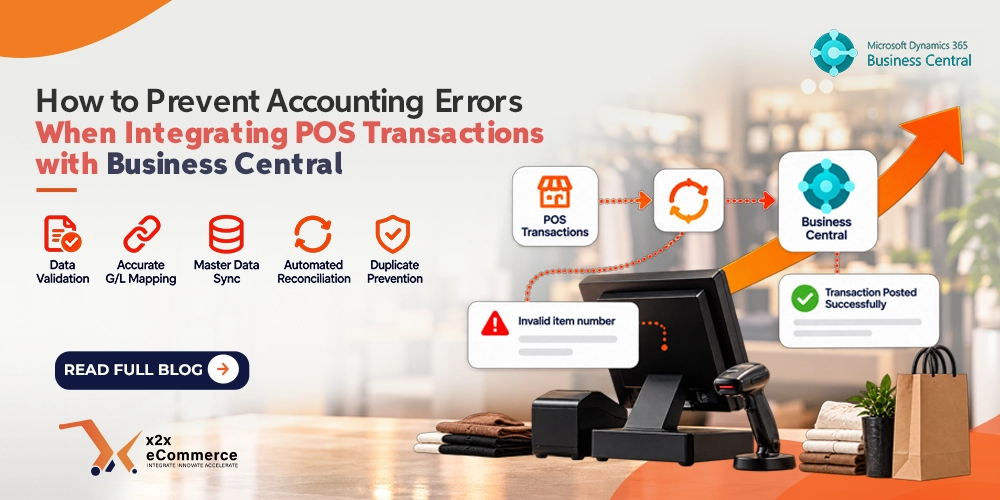
Business Central POS integration saves hours of manual posting until one bad mapping sends thousands of wrong entries into the General Ledger (G/L). Connecting a point-of-sale system to Microsoft Dynamics 365 Business Central automates the work, and it automates the mistakes too. The fix is in the design of the integration, not in more review after the fact. This guide covers five design steps that keep POS transactions clean on their way into Business Central.
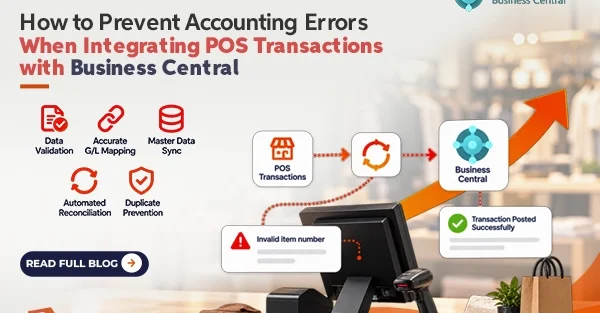
To prevent accounting errors in a POS and Business Central integration: validate every transaction before it posts, map payments, discounts and dimensions to the correct G/L accounts, keep master data flowing from Business Central to the POS, reconcile the POS Z-report against posted entries every day, and give each sale a unique transaction ID so a retry cannot create a duplicate.
Where do accounting errors in POS integrations come from?
Almost all of them trace back to five causes: bad data reaching Business Central, wrong account mapping, prices or tax codes that drift out of date, transactions that fail without anyone noticing, and the same sale posted twice. Our post on five common accounting challenges in POS and Business Central integration looks at the same problems from the accountant’s side. Each step below answers one cause.
Step 1: validate transactions before posting
Do not let invalid data reach Business Central. Add validation rules that inspect each incoming transaction and check for:
- item numbers that do not exist in Business Central
- inactive customer accounts
- payment types Business Central does not recognize
- discount codes that are not set up in Business Central
If a cashier enters a discount code that Business Central does not know, the transaction should go to an error queue, not into the ledger. Someone fixes it there and it is reposted. For a deeper look, read how to design reliable POS transaction logic for Business Central integration.
Step 2: enforce G/L account and dimension mapping
Many accounting mistakes come from payments or discounts landing in the wrong account. Business Central needs the right G/L accounts and dimensions to classify each posting. Three rules cover most cases:
- Give each tender type (cash, Visa, Amex, gift card) its own clearing account.
- Map discounts and loyalty redemptions to the correct contra revenue or liability accounts.
- Assign every store or register its own dimension code.
Microsoft’s documentation explains how dimensions work in Business Central, and its learning path on setting up financial management covers posting groups and the chart of accounts. Returns and negative amounts need their own mapping rules, which we cover in handling discounts, returns and negative amounts.
Step 3: keep master data in sync
Data drift is a quiet source of errors. If an item’s price changes in Business Central and the POS keeps charging the old price, revenue and inventory value fall out of step. Set up a one-way sync where Business Central is the master. Item prices, tax codes and the costing method should flow from Business Central to the POS on a regular schedule. For multi-store inventory, see real-time inventory sync between RMH and Business Central.
Step 4: automate end-of-day reconciliation
Waiting for month-end reconciliation is too late. By the time an accountant notices missing transactions, tracing them is slow and the books have moved on. Build reconciliation into the integration instead. At the end of each day the POS produces a Z-report with sales totals by payment type and register. Compare those totals automatically with the transactions that actually posted to Business Central, and flag any difference the same day.
Step 5: design for idempotency and safe retries
Duplicate postings are among the most frustrating errors, because fixing one usually means reversing it with a credit memo. Network timeouts will happen. The POS sends a sale, Business Central processes it, the network drops before the success message returns, and the POS retries. Without protection, the sale posts twice.
The fix is to give every sale a unique transaction ID. When a request arrives, Business Central checks whether it has already seen that ID. If it has, it ignores the duplicate and returns a success response. This property is called idempotency, and Stripe’s API documentation on idempotent requests explains the idea in plain terms.
Common POS to Business Central errors and the step that prevents them
| Error | Typical cause | Prevented by |
|---|---|---|
| Posting fails on a missing item or inactive customer | Invalid or outdated master data | Steps 1 and 3 |
| Payment totals do not match the clearing accounts | Tender mapped to the wrong account | Step 2 |
| Revenue differs from the price list | POS still using an old price | Step 3 |
| Missing sales found at month end | Failed posts nobody saw | Step 4 |
| The same sale posted twice | Retry after a network timeout | Step 5 |
Pre-go-live checklist
- Validation rules reject unknown items, inactive customers, unknown payment types and unknown discount codes.
- Every tender type, discount type and loyalty type has a mapped G/L account.
- Each store and register has its own dimension code.
- Prices, tax codes and costing method sync from Business Central to the POS on a schedule.
- The daily Z-report is compared with posted entries, and differences are flagged.
- Every sale carries a unique transaction ID, and duplicates return success without posting.
Our integration checklist for Business Central and POS goes further into setup and testing.
Frequently asked questions about Business Central POS integration
What causes accounting errors in a POS and Business Central integration?
The usual causes are invalid data reaching Business Central, wrong G/L or dimension mapping, stale prices and tax codes, failed posts that go unnoticed, and duplicate postings after a retry.
How do I stop duplicate sales posting in Business Central?
Assign a unique transaction ID to every sale and have Business Central check for it on arrival. If the ID already exists, Business Central ignores the duplicate and returns a success response, so the POS stops retrying.
Which G/L accounts should POS payments map to?
Each tender type, such as cash, Visa, Amex or gift card, should map to its own clearing account. Discounts and loyalty redemptions go to contra revenue or liability accounts, depending on how your accountant sets them up.
Why reconcile every day instead of every month?
A daily comparison of the POS Z-report with posted entries catches a missing or failed transaction while it is still easy to trace. At month end the same problem takes much longer to find.
Does x2x integrate RMH with Business Central?
Yes. x2x builds integrations between Retail Management Hero (RMH) and Microsoft Dynamics 365 Business Central. See the RMH Dynamics 365 Business Central integration page and the integration architecture overview.
Next step
These five steps work as questions for any integration vendor, including us. If you want to see how an RMH to Business Central integration handles them with your own data, book a free x2x demo.