
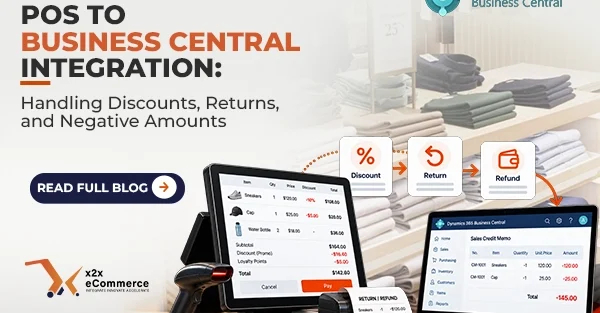

POS discounts and returns in Business Central are easy while every customer pays full price and keeps what they buy. Real retail is messier. Customers use loyalty points and coupon codes, bring back last week’s purchase and expect a refund. Each of those events creates a discount, a reversal or a negative amount, and that is where a POS integration with Microsoft Dynamics 365 Business Central tends to break. The result is a mismatch in inventory and in the General Ledger (G/L). This guide shows how to map each event so the books stay clean.
How should each POS event map to Business Central?
| POS event | How it should land in Business Central |
|---|---|
| Line-item discount | Line Discount % or Line Discount Amount on the sales line |
| Whole-order discount (such as $10 off) | Split proportionally across the items and sent as line discounts |
| Loyalty points or credits | A dedicated non-inventory item posted against a liability G/L account |
| Return of a sellable item | Sales credit memo with positive quantities, back to the store’s location |
| Return of a damaged item | Sales credit memo, received into a damaged goods location |
| Card refund | The same G/L account as the original card sale, with a negative amount |
| Return after a price change | Priced from the original transaction ID, using the historical price |
How do you handle complex discounts?
Retailers use several discount types at once: line-item discounts, transaction discounts, manager overrides and loyalty discounts. The most common integration mistake is calculating the discounted total at the POS and sending Business Central one aggregated number. Business Central then loses the margin detail it needs to calculate cost of goods sold (COGS) and to judge how a promotion performed.
Map discounts at the line level instead. Line-item discounts go to Line Discount % or Line Discount Amount on the sales invoice or sales order. For a transaction discount such as “$10 off your total order”, do not post a flat negative line at the bottom of the invoice. Have the POS middleware apply the discount proportionally to every product in the cart as a line discount. That keeps inventory valuation and COGS accurate. For loyalty points and credits, create a special non-inventory item in Business Central and post it against a liability G/L account.
How should returns be posted?
A return is more than a negative sale. When a customer brings an item back, the integration must reverse the money and the stock without disrupting the day’s other transactions.
Start with the document type. A sales invoice with negative quantities works, but a sales credit memo is the better choice. Microsoft’s documentation on processing sales returns or cancellations describes the credit memo as the document that reverses the original sale, after which a refund payment can be created.
Then deal with inventory. The POS should send the return as positive quantities on the credit memo, so Business Central raises stock at the store’s location. If the item is damaged and cannot be resold, the integration should send it to a “damaged goods” location instead of the sellable one.
How do you validate negative amounts?
Returns, reversed loyalty points and partial refunds all create negative numbers, so the integration needs validation logic for them. Business Central is strict about balancing debits and credits. If a posting is off by one cent, the whole posting fails.
Keep payment mappings symmetrical. If credit card sales go to G/L account 10100, credit card refunds should go to the same account with a negative amount. Price changes add a second trap. If an item’s price in Business Central has changed since the original purchase, the return must still use the old price. Make sure the middleware looks up the original transaction by its exact transaction ID and uses the historical price. Business Central also has a setting for this: Exact Cost Reversing Mandatory in the Sales & Receivables Setup forces returns to be posted at the same cost as the original sale.
Frequently asked questions about POS discounts and returns in Business Central
Should a POS return be a credit memo or a negative sales invoice?
A sales credit memo is the better choice. It is the document Business Central uses to reverse a sale, and it lets the return restore inventory with positive quantities.
How do you post a whole-order discount from a POS?
Spread the discount across every item in the cart and send each share as a line discount. Posting one flat negative line hides the margin detail Business Central needs for COGS.
Where do loyalty points go in the G/L?
Create a special non-inventory item for the loyalty credit and post it against a liability G/L account. That reflects the amount the business still owes customers.
Where should returned damaged items go?
Receive them into a separate “damaged goods” location in Business Central, so unsellable stock never shows as available inventory.
Why does a one-cent difference make a posting fail?
Business Central requires debits and credits to balance exactly. If rounding or a negative amount leaves the document one cent out, the whole posting is rejected. See how to handle rounding differences.
Next step
For the wider design picture, read how to prevent accounting errors when integrating POS transactions with Business Central and how to design reliable POS transaction logic. If you run Retail Management Hero (RMH), see the RMH Dynamics 365 Business Central integration or book a free x2x demo.