
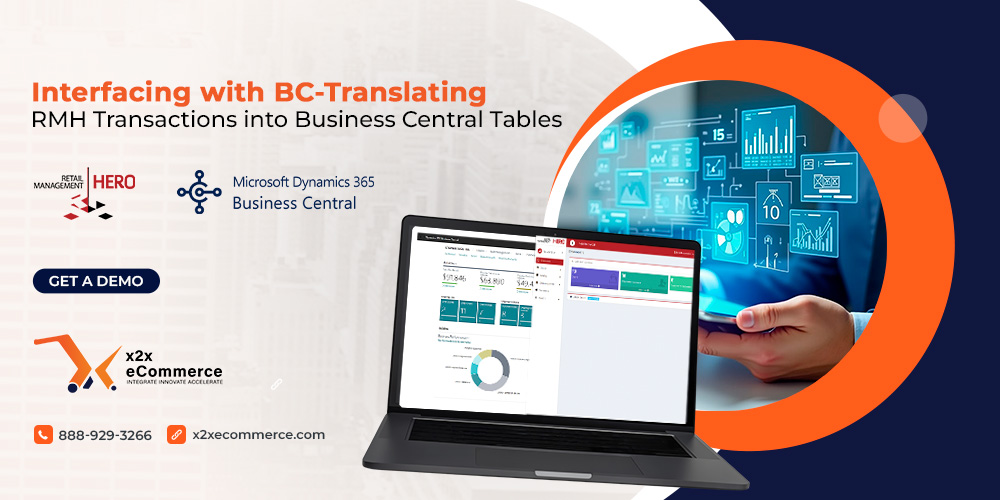
The decision to integrate the Retail Management Hero platform (RMH) to the Microsoft Dynamics 356 Business Central (BC) is a wise choice made by those looking to integrate their finances and operations within one management solution. Unfortunately, switching platforms rarely means a seamless experience. The biggest roadblock to success is the ability to translate the transactions of the POS system into the tables of the ERP solution. To ensure a smooth process, this guide will help you map the RMH transactions to the appropriate Business Central tables.
1. The Sales Header: The Container
The sales record is stored in the Transaction table in RMH. The Transaction table is considered the “container” of the sale; that is, the transaction time, the register, and the cashier. This translates into the Sales Header table (table 36) in BC.
Transaction Mapping: The Transaction Number in RMH would translate to the Sales Header. “No.” in BC.
Time & Date: These two attributes are separate in RMH but combined or even replaced by the Posting Date in BC. It is necessary to map Transaction Time and Transaction Date to Sales Header. “Order Date” and Sales Header. “Posting Date”.
Customer: If the RMH Transaction has a customer ID associated with it, then map that to Sales Header. “Sell-to Customer No.” If not, then map it to an appropriate generic cash account that is used for all customers in BC.
2. The Sales Line: The Detail
While Transaction table is the skeleton, the RMH Transaction Entry table can be considered as its muscle because it contains all items sold, discounts applied, and refunds made. It corresponds to the Sales Line table.
Item: The important attribute that you should focus on in Transaction Entry is Item ID. It needs to be linked perfectly with Sales Line. “No.”, which links directly with the Item table from BC.
Quantity and Price: Connect Transaction Entry Quantity with Sales Line. Quantity, making sure of correct signage. RMH typically applies positive integers to represent sales while applying negative ones in case of refunds, but in BC it may differ as depending on the document type used, Invoice and Credit Memo.
Tax: RMH calculates the tax rate in every single line according to the tax codes. It is necessary to link tax codes with BC Tax Area Codes/Tax Groups for calculating the sales tax liability.
3. Tender Management: Payments
One of the toughest parts of the mapping is the Tender Entry table in RMH. In RMH, whether the client pays using cash, card or store credit. This information cannot be stagnant in BC but needs to create financial transactions.
Map payments against payment methods which further links to the respective G/L accounts for pulling in transactional entries.
4. Inventory and Dimensions
In the final step, make sure that your sales transactions update the inventory levels. BC Item Ledger Entry automatically updates with sales postings. Make sure to properly map the RMH Store ID to Location Code within BC, otherwise BC incorrectly assumes that a sale relates to the “blank” location. As a result, BC may update the inventory at a generic location, rather than an individual location per store branch.
Conclusion
The process of mapping RMH to Business Central involves more than just copying the data, it involves translating your business logic into the language of Business Central. Strictly matching RMH Transactions/Transaction Entry tables to BC Sales Header/Sales Line records and ensuring that the Tender Entry data records properly against General Ledger accounts, BC financials will accurately depict the retail sales.